
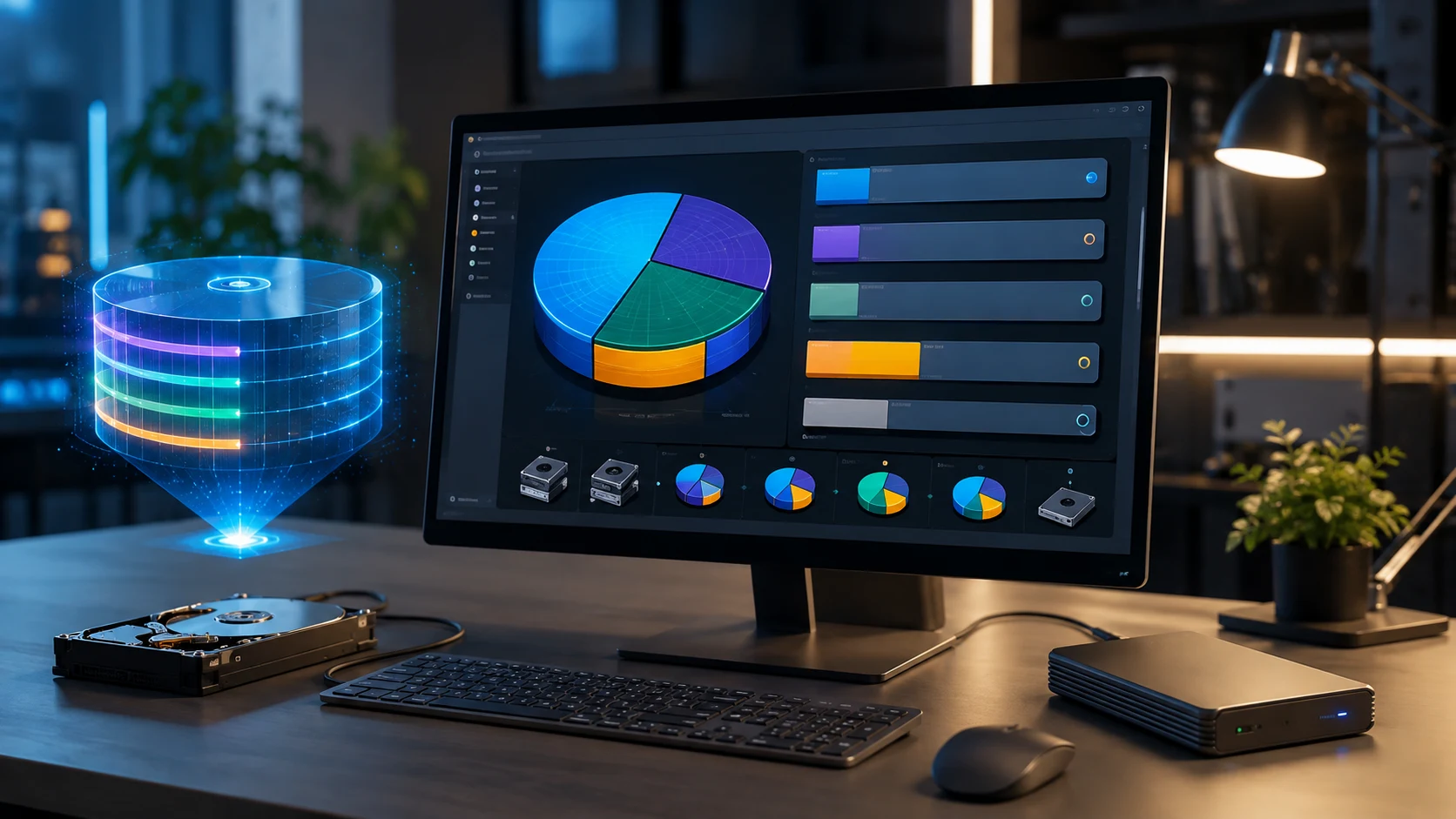
What Is a Partition? Storage Partitions Explained
A partition is a logically separated section of a storage device such as a hard drive, solid-state drive, or removable disk. Instead of treating the entire drive as one large storage area, an operating system can divide it into multiple sections that function independently. Each partition may contain its own file system, operating system, applications, or user data. For example, one partition could store Windows while another holds personal files or a second operating system. Partitioning does not physically cut the drive into pieces; it organizes the available storage space logically. Understanding storage partitions helps users manage disks more efficiently and troubleshoot common installation or storage problems.
Partitions are widely used in desktop computers, laptops, servers, external drives, and enterprise storage systems. A new physical disk can contain one large partition or several smaller partitions depending on how it is configured. Operating systems often create certain partitions automatically during installation, including boot, recovery, and system partitions. Other partitions can be created manually for data organization or multi-boot configurations. Users normally see each accessible partition as a separate volume or drive letter, depending on the operating system. Behind that simple interface, partition tables describe where each section begins and ends on the physical storage device.
Storage partitioning can provide practical benefits when it is planned correctly. Separating operating system files from personal data may simplify certain backup and recovery workflows. Multiple partitions can also support different file systems or operating systems on the same physical drive. Server administrators sometimes partition storage to separate application data, logs, user files, or system components. However, partitioning does not automatically protect data from physical drive failure because all partitions on the same disk still depend on the same hardware. This distinction is important when designing backup strategies. Logical separation and physical redundancy solve different storage problems.
The way partitions are organized depends partly on the partitioning scheme used by the disk. Two widely recognized partition table formats are MBR, or Master Boot Record, and GPT, or GUID Partition Table. MBR is an older format with limitations related to disk size and the number of primary partitions. GPT is the newer approach used by many modern systems and supports larger drives and more partitions. The boot method, operating system, firmware, and compatibility requirements can influence which partition scheme is appropriate. Understanding these formats becomes particularly useful when installing operating systems or replacing storage devices.
This article explains what a partition is, how storage partitions work, why computers use them, and how they differ from volumes, file systems, and physical drives. It also covers primary and logical partitions, GPT and MBR, system and recovery partitions, resizing, formatting, and common partitioning mistakes. The goal is to make disk partition terminology easy to understand without requiring advanced storage knowledge. Whether you are setting up a new SSD, installing an operating system, troubleshooting missing storage space, or learning computer fundamentals, partitions are an important concept. Once the basic structure is clear, disk management becomes much easier to understand.
What Is a Storage Partition?
A storage partition is a defined logical region of a physical storage device. The partition table records where that region starts, where it ends, and how the operating system should recognize it. A single 1 TB SSD, for example, could be configured as one approximately 1 TB partition or divided into several smaller sections. One section might contain the operating system while another stores documents and media. Although these partitions appear separate to software, they still occupy the same physical device. Partitioning therefore creates logical boundaries rather than separate pieces of hardware. This distinction is fundamental when understanding disk organization.
Most usable partitions contain a file system that determines how files and folders are stored within that section. Common file systems include NTFS, exFAT, FAT32, ext4, APFS, and others depending on the operating system and device. Creating a partition defines the storage region, while formatting usually prepares that region with a file system. These are related but separate operations. A partition can technically exist without a usable file system, in which case the operating system may show it as unformatted or unknown. Users sometimes confuse partitioning and formatting because disk management tools often present both processes together.
Operating systems identify partitions in different ways. Windows commonly assigns drive letters such as C:, D:, or E: to accessible volumes associated with partitions. Linux and Unix-like systems typically mount file systems at directories such as /, /home, or /mnt/data. macOS also presents volumes through its own storage management system. Regardless of the interface, the underlying principle is similar. The operating system needs a defined region of storage and a method for organizing the data inside it. Partition information helps the system locate and manage that region accurately.
Partitions can have very different purposes. A boot partition may contain files required to start the computer, while a recovery partition can store tools used to repair or reset the operating system. A large data partition might contain user documents, photos, videos, and project files. Another partition could host a second operating system for dual-boot use. Enterprise systems may separate databases, logs, applications, and system files for administrative reasons. These uses demonstrate why partitions are more than simple storage divisions. They can support booting, organization, compatibility, recovery, and specialized system functions.
The number and size of partitions depend on the storage device, partition table, operating system, and user requirements. Modern computers often contain several hidden system partitions even when users see only one main drive letter. These hidden sections should not be deleted simply because they appear small or unfamiliar. They may contain important boot or recovery information. Before modifying partitions, users should understand what each one does and maintain a current backup of important data. Partitioning changes can affect the structure of the entire disk, so careful management is essential.
How Do Storage Partitions Work?
Storage partitions work through metadata that describes the layout of the physical disk. This information is stored in a structure called a partition table. The table tells the system where individual partitions begin and end and may also contain information about partition types. When a computer starts or an operating system detects the disk, it reads this partition information to understand how the device is organized. Without valid partition metadata, the operating system may not know where usable storage regions are located. This is why damaged partition tables can make files appear inaccessible even when the underlying data may still exist physically.
Each partition occupies a range of storage addresses on the device. The operating system treats that range as a separate logical storage area. If a disk is divided into three partitions, each one receives a portion of the available capacity. Those boundaries generally prevent one partition’s file system from using space allocated to another partition. If the first partition becomes nearly full while the second has plenty of free space, the first cannot normally use that extra capacity automatically. Administrators may need to resize partitions or reorganize the disk to redistribute available space.
After a partition is created, it is usually formatted with a file system before normal files can be stored there. Formatting establishes structures that track directories, filenames, free space, permissions, and other file-related information. Different partitions on the same physical disk can use different file systems. For example, one partition might use NTFS while another uses ext4. This flexibility is useful for dual-boot systems and specialized storage environments. However, operating systems do not support every file system equally. Compatibility should therefore be considered before selecting a file system for a partition.
When a user opens a file, the operating system identifies the relevant partition and then uses the file system within that partition to locate the file’s data. The partition provides the logical storage boundary, while the file system provides the organization inside that boundary. These layers work together but perform different tasks. Understanding the difference helps when troubleshooting storage problems. A damaged partition table can prevent the entire region from being recognized, while a corrupted file system may leave the partition visible but make individual files difficult to access. Different problems therefore require different recovery approaches.
Modern storage management tools often hide much of this complexity behind graphical interfaces. A user may simply choose “create volume,” select a size, and assign a drive letter. The software then performs several underlying steps, including creating or modifying partition information and formatting the new region. Command-line tools can provide more direct control for administrators and advanced users. Regardless of the interface, partition changes should be performed cautiously. Interrupting certain operations or selecting the wrong disk can result in data loss. A verified backup is the safest preparation before significant partition changes.
Why Are Partitions Used?
One common reason for partitioning is to separate the operating system from personal or business data. A computer might use one partition for Windows and another for documents, media, or project files. This arrangement can make some maintenance and recovery tasks easier because system files and user data are logically separated. If the operating system needs to be reinstalled, the data partition may be left untouched when the process is performed correctly. However, partitioning is not a substitute for backup. A hardware failure affecting the physical drive can still make every partition on that drive unavailable.
Partitions are also used to support multiple operating systems. A user may divide one physical drive so Windows occupies one partition while Linux uses another. During startup, a boot manager can allow the user to choose which operating system to load. Each system can maintain its own file system and system files. This configuration is known as dual boot or multi-boot. It provides direct access to each operating system without running one inside a virtual machine. However, configuring bootloaders and resizing partitions requires care because mistakes can prevent one or both operating systems from starting properly.
System manufacturers use specialized partitions for booting and recovery. A modern computer may contain an EFI System Partition that stores boot-related files used by UEFI firmware. Another hidden recovery partition may provide repair tools or factory reset capabilities. These partitions are usually much smaller than the main operating system partition. Users may notice them in disk management tools and wonder why the space is unavailable. Deleting them without understanding their purpose can create boot or recovery problems. Their small size often makes leaving them intact the safest choice unless there is a specific administrative reason to change the layout.
Servers can use partitions to separate workloads or system functions. An administrator might allocate different storage areas for system files, application data, logs, temporary files, and user content. This separation can make capacity monitoring and certain security policies easier to manage. For example, rapidly growing log files may fill their assigned partition without consuming all available space on the system partition. Linux servers have historically used separate mount points for directories such as /home, /var, or /boot. Modern storage technologies provide additional methods for achieving similar goals, but partitioning remains an important option.
Partitions may also be used for compatibility and removable media management. A drive shared between different operating systems might contain a partition formatted with a file system supported across those systems. Specialized devices can require particular partition structures before they recognize a storage device correctly. External drives may also be divided into separate areas for backups and general files. However, unnecessary partitioning can make storage management more complicated. Users should create partitions for a clear purpose rather than simply dividing a disk into many sections. A simpler layout is often easier to maintain.
Types of Storage Partitions
Traditional MBR-partitioned disks commonly use the concepts of primary, extended, and logical partitions. A primary partition is a directly defined partition in the MBR partition table and can contain an operating system, file system, or other data. Because traditional MBR has a limited number of primary partition entries, extended partitions were introduced as a workaround. An extended partition acts as a container that can hold multiple logical partitions. This design allowed users to create more usable storage regions than the original primary partition limit would otherwise support. These terms are especially relevant when managing older systems or MBR-formatted disks.
Primary partitions can perform several roles depending on the operating system and boot configuration. On older BIOS-based systems, one primary partition might be marked active so the system knows where to look for boot information. Other primary partitions may simply store data. The operating system does not necessarily treat primary partitions as more important for everyday file storage. Their significance comes mainly from how MBR represents the disk structure. Modern GPT-based systems do not rely on the same primary-versus-extended distinction. This is one reason GPT simplifies partition management on newer computers.
An extended partition is not normally used directly as an ordinary file-storage region. Instead, it creates a framework within which logical partitions can exist. Users can format those logical partitions and assign them file systems just as they would other usable partitions. This arrangement was developed to overcome limitations in the original MBR structure. Although it may seem unnecessarily complicated today, it was an important solution for systems that needed more than a small number of partitions. Users working with legacy hardware or older disk layouts may still encounter this terminology regularly.
GPT partitions operate differently because GPT provides many partition entries without requiring an extended partition workaround. As a result, users can create numerous partitions directly without categorizing some as logical partitions inside an extended container. GPT also stores more robust partition metadata and supports modern large-capacity disks. On UEFI systems, GPT is commonly used for the main system disk. Each partition can have a type identifier that indicates its intended role, such as an EFI System Partition or general data partition. This structure is better suited to modern storage requirements.
Special-purpose partitions form another practical category regardless of the underlying partition table. Boot partitions contain information used during startup, recovery partitions store diagnostic or recovery environments, and swap partitions can provide disk-based virtual memory on certain Linux systems. Original equipment manufacturers may also create diagnostic or factory restoration partitions. Some of these regions are intentionally hidden from normal file browsing. Their presence is not evidence that disk space is being wasted. Instead, they often support important system functions that users rarely need to access directly.
MBR vs GPT Partitioning
MBR, or Master Boot Record, is an older disk partitioning scheme that has existed for decades. It stores partition information in a structure near the beginning of the disk and was designed for the limitations of earlier computer hardware. MBR remains compatible with many older operating systems and BIOS-based computers. However, it has restrictions that can become significant on modern storage devices. One of its best-known limitations is support for only a small number of primary partition entries without using an extended partition. It also has practical capacity limitations when dealing with very large drives.
GPT, or GUID Partition Table, is a newer partitioning format designed as part of the modern UEFI ecosystem. It supports much larger storage devices and allows many partitions without relying on extended and logical partition structures. GPT also stores partition information more robustly than traditional MBR by maintaining important metadata at multiple locations on the disk. It uses globally unique identifiers to describe partitions and partition types. These features make GPT better suited to modern computers, servers, and high-capacity drives. Most current operating systems support GPT well, particularly when paired with UEFI firmware.
One practical difference concerns boot compatibility. Traditional BIOS systems commonly boot from MBR-formatted disks, while modern UEFI systems generally support GPT for operating system boot drives. Some platforms can support additional combinations depending on configuration, but firmware and operating system compatibility still matter. When installing a new operating system, the installer often chooses the appropriate partitioning scheme automatically based on how the installation media was booted. Problems can occur when the firmware mode and disk partition style do not match the installation requirements. Understanding this relationship can simplify troubleshooting.
Data capacity is another reason GPT has become the preferred option for large drives. MBR’s addressing design creates limitations that become relevant when disk capacity exceeds certain thresholds. GPT was designed to support far larger storage spaces and a more flexible number of partitions. As modern HDDs and SSDs have increased in capacity, these advantages have become increasingly important. Users setting up large new drives will therefore often encounter GPT as the recommended partition style. Unless compatibility with older systems is required, GPT is generally the more modern architecture.
Converting between MBR and GPT can sometimes be possible without completely recreating the disk, depending on the operating system and available tools. However, partition table conversion should still be treated as a potentially risky operation. Boot configuration, existing partitions, and operating system requirements need to be considered carefully. A mistake can make a disk temporarily unbootable or inaccessible. Important files should be backed up before changing partition structures. When setting up a completely new disk, selecting the appropriate scheme from the beginning is usually simpler than converting later.
Partition vs Volume vs File System
The terms partition, volume, and file system are related, but they describe different layers of storage. A partition is a defined region on a physical disk. A volume is a logical storage area that an operating system can use, and it may correspond directly to a partition or be created through more advanced storage technologies. A file system is the structure used to organize files and directories within a volume. In simple desktop setups, one partition often becomes one volume containing one file system. Because these concepts overlap in everyday use, people frequently use the words interchangeably even though they are technically different.
Imagine a new SSD as an empty physical storage device. The user creates a 500 GB partition, which defines a particular range of the SSD. That partition may then be formatted as NTFS, creating the file system structures necessary for storing files. Windows might assign the resulting usable volume the drive letter D:. To the user, D: appears to be the important object. Behind the scenes, however, several layers are involved: the physical SSD, the partition table, the partition, the volume, and the NTFS file system. Understanding these layers makes storage troubleshooting more precise.
Advanced storage technologies can separate volumes from traditional physical partitions even further. Logical volume managers can combine or divide storage in flexible ways without depending entirely on fixed partition boundaries. RAID systems may combine multiple physical disks into one logical storage resource. Storage pools and virtual disks can add additional abstraction layers. In these environments, a volume may span resources that do not map neatly to one physical partition. This flexibility helps servers and enterprise systems expand or reorganize storage more easily. However, it also makes the storage architecture more complex.
A file system determines how data is named, organized, stored, and retrieved. NTFS, ext4, APFS, FAT32, and exFAT all provide different features and compatibility characteristics. The partition itself does not inherently provide folders, permissions, or filenames. Those features come from the file system created within the usable storage area. If a partition exists but contains no recognized file system, the operating system may ask the user to format it before normal use. Formatting prepares the region for file storage but can also remove existing file system information, so it should never be performed casually on a disk containing important data.
Distinguishing these terms is useful when interpreting disk management tools. A tool might show a physical disk divided into several partitions, while the file browser displays only mounted volumes. Some partitions remain hidden because they contain boot or recovery data rather than general user files. Another storage system may present one volume that draws capacity from several physical disks. Recognizing these layers helps users understand why the same storage can appear differently across different tools. The physical hardware is only the foundation; partitioning, volumes, and file systems determine how that capacity becomes usable.
How to Create and Format a Partition
Creating a partition normally begins by selecting available unallocated space on a storage device. Disk management software allows the user to choose how much of that space should belong to the new partition. The tool then updates the partition table with the new boundary information. On a completely new disk, the user may first need to initialize the device using GPT or MBR. Once the partition exists, it can usually be formatted with an appropriate file system. The exact interface differs between operating systems, but the underlying sequence is similar across many platforms.
Choosing a partition size requires some planning. If the entire drive will be used for one purpose, creating one large partition may be simplest. If the disk needs separate operating system and data areas, capacity should be divided according to expected usage. A system partition that is too small may fill quickly as applications, updates, and temporary files accumulate. A data partition that is excessively large may leave unnecessary limitations elsewhere. Because resizing is possible in many cases but not always convenient, realistic future storage requirements should be considered before finalizing the layout.
Formatting comes after the partition has been created. The user chooses a file system based on the operating system, device type, compatibility, and intended use. NTFS is common for Windows internal drives, while exFAT is often used when removable storage needs broad compatibility. Linux systems frequently use file systems such as ext4, while Apple platforms use their own modern file systems for many internal volumes. Formatting also allows users to select settings such as volume labels and, in some systems, allocation options. Default choices are appropriate for many ordinary situations.
Quick formatting and full formatting may behave differently depending on the operating system and tool. A quick format generally creates the necessary file system structures without performing an exhaustive scan of the entire storage area. A more thorough format may perform additional checks and can take significantly longer. Neither should be confused with guaranteed secure data erasure. SSD behavior, encryption, wear leveling, and storage controller functions complicate secure deletion. Users who need to dispose of sensitive storage should use appropriate secure erase or cryptographic methods rather than assuming ordinary formatting permanently destroys all recoverable information.
The most important precaution is confirming the correct disk before creating, deleting, or formatting partitions. Storage tools can display several drives with similar capacities and names. Selecting the wrong one can destroy valuable information quickly. Users should verify device size, model, existing volumes, and backups before making changes. Screenshots or notes of the current layout can also help when performing complex modifications. Partitioning is straightforward when done carefully, but its ability to alter disk structure means mistakes can have serious consequences. Preparation is therefore more important than speed.
How to Resize, Delete, and Manage Partitions
Partition resizing changes the amount of storage allocated to an existing partition. A partition can often be expanded when compatible unallocated space is available nearby, although the exact requirements depend on the disk layout and management tool. Shrinking a partition creates unallocated space that can potentially be used for another partition. Before shrinking, the system must ensure that existing data fits within the smaller boundary. Some file systems and partition types support resizing more easily than others. Users should therefore check compatibility before assuming a partition can be adjusted without difficulty.
Expanding a partition can solve situations where one volume is running out of space while unused capacity exists elsewhere on the disk. However, free space shown inside another partition is not the same as unallocated space. The other partition may first need to be shrunk or reorganized. In some layouts, the unallocated space must be adjacent to the partition being expanded. Third-party or advanced tools may offer additional movement capabilities, but every structural change creates some risk. A current backup should exist before major resizing operations. Power loss or software failure during certain changes can leave file systems or partitions damaged.
Deleting a partition removes its entry from the active disk layout and normally makes the associated capacity available as unallocated space. This action can make existing data inaccessible, so it should only be performed when the user is certain the partition is no longer needed. System, EFI, recovery, and vendor partitions deserve particular caution because they may support booting or troubleshooting functions. A small unfamiliar partition should not be deleted solely to recover a few gigabytes. The consequences can outweigh the storage gained. Identifying the purpose of each partition is an essential step before deletion.
Disk management can also involve changing drive letters, labels, mount points, or file systems. These adjustments do not always require modifying the underlying partition boundaries. For example, Windows can assign a different available drive letter to a data volume, while Linux can mount a file system at a different directory. Changing these references may affect applications that expect specific paths. Administrators should therefore consider software dependencies before making changes. Storage organization includes both the physical or logical partition structure and the way operating systems expose those regions to applications and users.
Regular management should focus on capacity, health, backups, and simplicity rather than constant repartitioning. A well-designed layout may require little structural change for years. Monitoring free space helps users act before a critical system partition becomes completely full. Drive health monitoring can also provide warnings about certain hardware problems, although no diagnostic system can predict every failure. Backups remain essential regardless of partition structure. Partitions are organizational tools, not protection against drive failure, theft, malware, accidental deletion, or physical damage.
Common Partition Problems and Mistakes
One common problem is accidentally deleting the wrong partition. Because some disk management tools display several small system partitions alongside user data volumes, inexperienced users may remove an important region believing it is unnecessary. This can make an operating system unbootable or eliminate built-in recovery tools. If a partition has an unfamiliar label or no drive letter, that does not mean it is safe to delete. Users should identify its purpose before modifying it. When the disk contains important data, creating a full backup or system image beforehand provides valuable protection against mistakes.
Another mistake is creating a system partition that is too small. Operating systems grow over time as updates, applications, caches, and temporary files accumulate. If the main partition was allocated only enough space for the original installation, it may become difficult to maintain later. Resizing can solve the problem in some cases, but available unallocated space may not be positioned conveniently. Planning realistic capacity from the beginning is easier than constantly reorganizing storage. Modern applications and games can consume large amounts of space, so future growth should be included in partition sizing decisions.
Partition table corruption can make storage appear missing or unreadable. Damage may result from hardware problems, interrupted disk operations, software bugs, malware, or user errors. In some cases, the actual files remain on the disk while the information describing their partition becomes damaged. Recovery software may sometimes reconstruct lost partition information or locate files directly, but success depends on what happened and whether new data has overwritten important structures. Users should avoid repeatedly writing new information to a damaged drive when recovery is important. Professional recovery may be appropriate for irreplaceable data.
Formatting the wrong partition is another serious mistake. Users may select a similarly named volume and accidentally create a new file system over valuable data. A quick format does not always overwrite every underlying data block immediately, but it does alter important file system structures and should still be treated as data loss. Continuing to use the formatted partition can overwrite recoverable content. This is another reason careful disk identification matters. Drive capacity, label, connection type, and existing folder contents should be checked before formatting any storage device.
A final misunderstanding is assuming partitions provide backup protection. If one physical SSD contains a system partition and a data partition, failure of that SSD can affect both simultaneously. Malware with sufficient access may also damage files across several mounted partitions. A real backup should exist on separate storage or another appropriately protected destination. External drives, network storage, and cloud backup services can provide additional copies when configured properly. Partitioning improves organization and can support certain recovery workflows, but it does not create physical redundancy. Treating a second partition as a backup can create a dangerous false sense of security.
Conclusion
A partition is a logical section of a physical storage device that allows disk capacity to be organized into separate areas. Each partition can serve a different purpose and may contain its own file system, operating system, recovery environment, or data. Partitioning makes it possible for one physical drive to appear as several separate storage regions. It also supports system booting, dual-boot environments, data organization, and specialized administrative layouts. Although partitions are created through software, their boundaries determine how the operating system interprets and uses physical storage space.
The partition table provides the information required to locate these regions. MBR and GPT are the two best-known partitioning schemes, with GPT offering a more modern structure suited to larger drives and current UEFI-based systems. MBR remains important for compatibility with older systems. The choice between them can affect booting, partition limits, and usable disk capacity. Operating system installers often handle this configuration automatically, but understanding the difference is valuable when building or repairing computers. Incorrect partition scheme choices can create installation and boot problems that may initially appear unrelated to disk structure.
Partitions should also be distinguished from volumes and file systems. A partition defines a storage boundary, while a file system organizes the files stored inside a usable region. A volume represents logical storage presented to the operating system and may or may not map directly to one traditional partition. These layers explain why disk management tools can show structures that look different from the drive letters or mounted folders users see in normal file browsers. Learning the terminology makes storage troubleshooting much more precise. It also prevents accidental actions based on incorrect assumptions about what a particular disk region represents.
Creating, resizing, formatting, or deleting partitions is generally manageable with modern tools, but each operation should be approached carefully. Selecting the wrong disk or removing an important system partition can cause immediate data loss or startup problems. Backups are therefore essential before major disk changes. Users should also avoid creating unnecessary partitions that make future capacity management more complicated. A simple layout often provides the easiest long-term maintenance. Partitioning should solve a specific storage or operating system requirement rather than adding complexity without a clear benefit.
Ultimately, understanding storage partitions makes hard drives and SSDs easier to manage. Partitions explain why a computer can display multiple drives even when only one physical disk is installed and why some small hidden regions appear in disk management utilities. They also clarify how boot environments, recovery tools, multi-boot setups, and different file systems can coexist. The key idea is simple: partitioning divides physical storage logically so the operating system can use different sections independently. With that foundation, concepts such as GPT, MBR, formatting, resizing, volumes, and file systems become much easier to understand.
Frequently Asked Questions About Storage Partitions
What is a partition in simple terms?
A partition is a logically separated section of a hard drive, SSD, or other storage device. It allows one physical disk to be organized into multiple independent storage areas.
Does partitioning a drive erase data?
Creating, deleting, formatting, or resizing partitions can put data at risk depending on the operation and tool being used. Important files should always be backed up before making significant changes to a disk’s partition structure.
What is the difference between a partition and a drive?
A physical drive is the actual storage device, while a partition is a logical section created within that device. One physical drive can contain several partitions that may appear as separate storage locations to the operating system.
Which is better, MBR or GPT?
GPT is generally better suited to modern computers because it supports larger disks, more partitions, and modern UEFI boot environments. MBR remains useful when compatibility with older hardware or operating systems is required.
Is partitioning the same as formatting?
No. Partitioning defines how storage space is divided, while formatting creates a file system that allows files and folders to be stored within a usable partition or volume.