
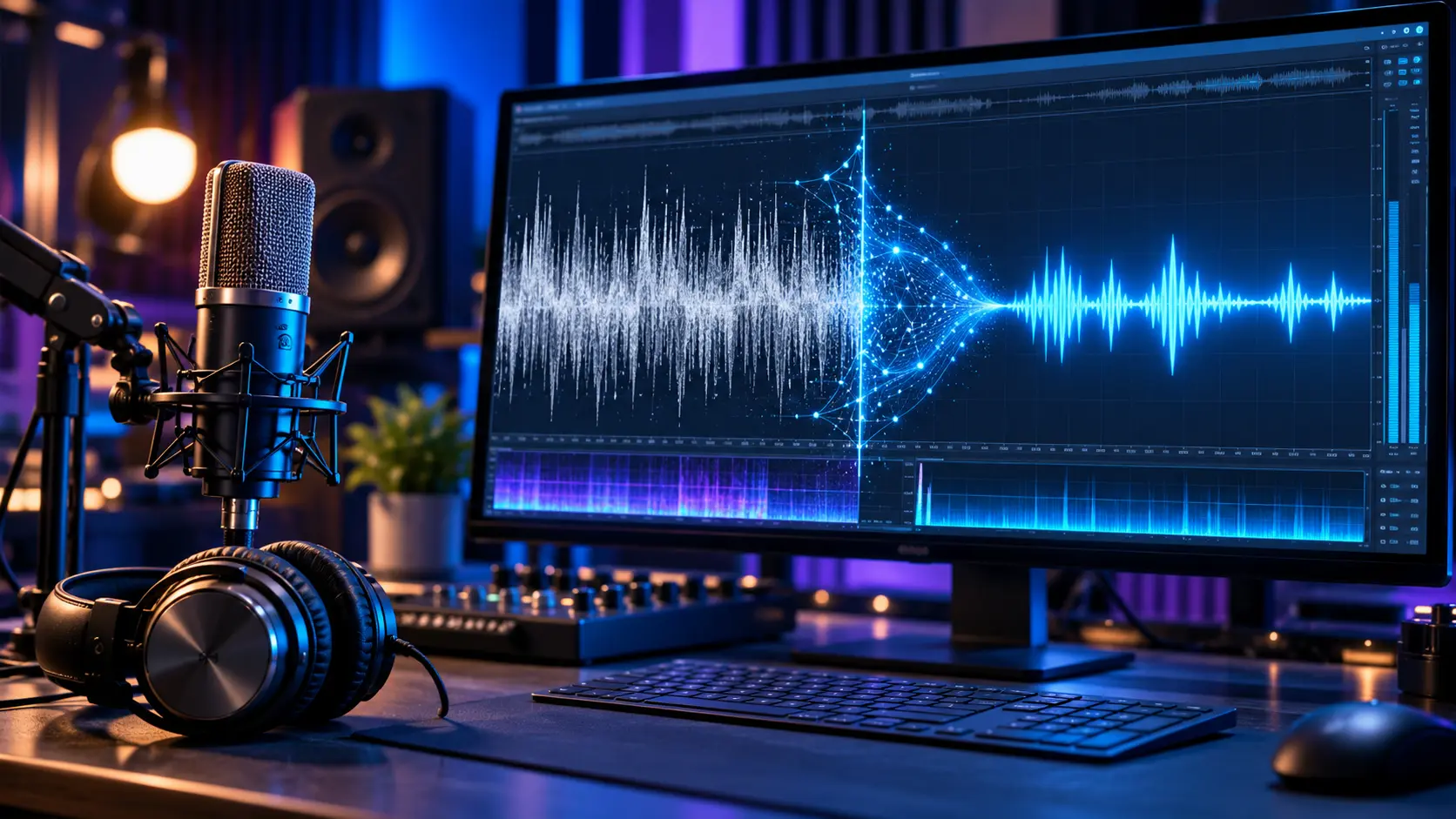
Background noise can make an otherwise excellent audio or video recording sound unprofessional. Whether you are recording a podcast, creating YouTube videos, attending online meetings, or producing educational content, unwanted sounds can distract listeners and make speech difficult to understand. Fortunately, artificial intelligence has made audio cleanup easier, allowing creators to improve recording quality without requiring advanced sound engineering skills.
AI-powered noise removal tools can identify unwanted sounds such as fan noise, traffic, air conditioning, keyboard clicks, and background conversations. These applications use machine learning to distinguish speech from surrounding noise and reduce distracting audio elements. Many tools can process recordings automatically, while others provide additional controls for refining the final result.
This guide explains how to remove background noise using AI, including the best tools, step-by-step methods, and practical techniques for improving audio quality. You will also learn how AI noise reduction works, how to clean up audio from videos, and how to avoid common editing mistakes. Whether you are a beginner or an experienced content creator, these methods can help you produce clearer recordings.
What Is AI Background Noise Removal?
AI background noise removal is a technology that uses artificial intelligence to identify and reduce unwanted sounds in audio recordings. Unlike basic audio filters, AI systems can analyze sound patterns and estimate which parts belong to speech or other desired audio. They then process the recording to reduce distracting elements. The objective is to make important sounds easier to hear.
Traditional noise reduction often works best with consistent sounds such as electrical hum or ventilation noise. AI-powered tools can sometimes handle more complicated sound environments, including changing background noise. For example, they may reduce traffic sounds while preserving a speaker’s voice. However, results depend on recording quality and the technology being used.
AI noise removal is commonly available in audio editors, video production software, conferencing applications, and specialized online platforms. Some tools process uploaded recordings, while others operate during live conversations. Both approaches can improve clarity under suitable conditions. Understanding the difference helps users select the right solution for their needs.
How Does AI Noise Reduction Work?
AI noise reduction uses machine learning models trained to recognize patterns associated with speech, music, environmental noise, and other audio signals. When a recording is processed, the system estimates which sounds should be preserved and which should be reduced. This separation allows the software to produce a cleaner audio signal. Different tools use different processing methods.
For example, a recording may contain someone’s voice alongside a constant fan sound. An AI system can identify characteristics of the speech and attempt to suppress the fan noise. More advanced models may also reduce intermittent sounds such as keyboard clicks. The effectiveness depends on how strongly the sounds overlap.
AI technology cannot always recover information that was never captured clearly. If speech is extremely distorted or completely covered by loud noise, some details may be impossible to restore accurately. Aggressive processing can also create unnatural voices or missing syllables. Careful review is important before using the finished recording.
Why Remove Background Noise From Audio?
Clear audio makes spoken information easier for listeners to understand. Background sounds can compete with speech, particularly when recordings are played through mobile speakers or inexpensive headphones. Reducing unwanted noise helps direct attention toward the main message. This is especially useful for tutorials, interviews, presentations, and educational videos.
Audio quality can also influence how professional a piece of content feels. Viewers may tolerate ordinary video quality when the message is useful, but difficult-to-understand narration can reduce enjoyment. Noise reduction helps improve clarity without requiring a complete recording studio. However, good recording habits remain equally important.
Removing background noise can also improve accessibility when combined with accurate captions and transcripts. Clearer speech may make recordings easier to follow and review. The benefits extend beyond content creation to online classes and workplace communication. An understandable recording helps information reach its intended audience.
1. Choose the Best AI Background Noise Removal Tool
The first step is selecting a noise removal tool that matches your project. Some applications are designed for recorded speech, while others provide live microphone filtering or detailed audio editing. Different tools also support different file formats and export options. Understanding these features can help you avoid unnecessary complications.
Popular AI-assisted options include Adobe Podcast Enhance Speech, Descript Studio Sound, Krisp, and DaVinci Resolve Studio’s Voice Isolation. Audacity also provides audio cleanup features, including conventional noise reduction and access to certain AI-based processing options. These tools offer different workflows and levels of control. Their pricing and availability may change.
| AI Tool | Common Use Case |
|---|---|
| Adobe Podcast | Enhancing recorded speech |
| Descript | Editing podcasts and spoken videos |
| Krisp | Reducing noise in live meetings |
| DaVinci Resolve Studio | Cleaning dialogue during video editing |
| Audacity | Audio editing and noise reduction |
Beginners may prefer simple tools that process recordings with minimal settings. Video editors might benefit from applications that combine sound cleanup with visual editing. Testing a short sample can help determine whether the software preserves speech naturally. The most expensive option is not necessarily the most appropriate.
2. Remove Background Noise With Adobe Podcast
Adobe Podcast offers an Enhance Speech feature designed to improve the clarity of spoken recordings. It can reduce common background distractions and adjust the perceived quality of speech. The process is relatively straightforward, making it suitable for beginners. Available features and usage limits depend on the current Adobe plan.
Start by opening Adobe Podcast and locating the Enhance Speech feature. Upload a supported audio file and allow the service to process the recording. Once processing is complete, listen to the enhanced result and compare it with the original. Download or export the processed audio using the available options.
Adobe Podcast can be useful for interviews, tutorials, and podcast recordings. However, strong processing may occasionally change vocal characteristics or produce artificial-sounding results. Recordings with music or several overlapping speakers may also require additional attention. Listening carefully before publishing helps identify unwanted changes.
3. Use Descript to Clean Up Audio
Descript is an audio and video editing platform that includes AI-assisted speech enhancement. Its Studio Sound feature is designed to make recorded voices clearer and reduce unwanted background noise. The platform also supports transcript-based editing. This combination is useful for podcasters, educators, and video creators.
Begin by importing your recording into a Descript project. Locate the relevant audio enhancement controls and enable Studio Sound where available. The software processes the recording to improve speech clarity. You can then review the result and make additional edits before exporting the project.
Descript may be particularly convenient when the recording also requires removing pauses, rearranging spoken sections, or creating captions. However, automated transcription and sound enhancement can produce mistakes. Important content should be checked against the original. A careful review improves both technical quality and factual accuracy.
4. Remove Live Background Noise With Krisp
Krisp is designed primarily for reducing background noise during live communication. It can help make voices clearer in online meetings, virtual interviews, and remote conversations. Rather than focusing only on finished recordings, it processes audio while people speak. This makes it useful for everyday communication.
After installing and configuring the application, users can select the appropriate audio devices in supported meeting software. Krisp can then apply noise cancellation during conversations, depending on the selected settings and plan. The exact configuration varies by operating system and application. Testing audio before an important meeting is advisable.
Live noise suppression can improve communication, but it has limitations. Very loud sounds or overlapping voices may still affect clarity. Processing can also influence voice quality under certain conditions. A quiet environment and suitable microphone positioning remain important even when AI cancellation is enabled.
5. Clean Audio Using Audacity
Audacity is a widely used audio editing application that offers several tools for improving recordings. Its traditional Noise Reduction effect can reduce relatively consistent background sounds, while additional processing options may be available depending on the software version and installed plugins. Audacity is useful for users who want greater editing control.
A common workflow involves importing an audio recording and identifying a short section containing only background noise. This section can help the traditional noise reduction tool estimate unwanted sound characteristics. After applying appropriate settings, the processed audio can be reviewed. The amount of noise reduction should be adjusted carefully.
Audacity is particularly helpful for basic podcast editing, voice recordings, and audio cleanup projects. However, its conventional Noise Reduction effect should not be confused with every AI-powered speech enhancement system. Different methods produce different results. Testing several approaches can help identify the most natural-sounding option.
6. Remove Background Noise From Videos Using AI
Many video creators encounter unwanted audio while recording tutorials, interviews, or social media content. Background traffic, air conditioning, and room noise can make narration difficult to understand. AI-assisted video editors can reduce some of these distractions without requiring a separate audio application. This simplifies the production workflow.
DaVinci Resolve Studio includes Voice Isolation features designed to improve dialogue clarity. Other video editing platforms may offer comparable speech enhancement tools. Creators can import their footage, access the audio processing controls, and adjust the result. The exact steps depend on the software and version.
After applying noise reduction, review the video with both sound and visuals. Audio quality should remain consistent between scenes, particularly when recordings come from different locations. Check for clipped words or unnatural transitions. Cleaning audio during video editing can improve presentation without changing the main content.
7. Remove Background Noise From YouTube Videos
Clear narration is important for YouTube videos because viewers need to understand explanations, demonstrations, and commentary. Background distractions may reduce the overall viewing experience. AI noise removal can improve recordings before they are uploaded. It is especially useful for creators working from ordinary home environments.
A practical workflow begins by importing the original recording into an audio or video editor. Apply a suitable noise reduction tool and compare the result with the unprocessed version. Adjust voice levels and review important sections. Once satisfied, export the finished video using appropriate settings.
Creators should avoid relying entirely on AI to correct every recording problem. Microphone placement, room acoustics, and recording levels influence the final result. Capturing cleaner audio initially reduces the amount of processing required. Combining good recording habits with AI editing produces more reliable results.
8. Improve Podcast Audio Quality With AI
Podcasts rely heavily on understandable speech, making audio quality an important production consideration. Interviews recorded from different locations may contain background noise, inconsistent microphone levels, or room echoes. AI tools can help reduce some of these differences. However, every recording requires individual evaluation.
Podcast editors often begin by cleaning unwanted sounds and checking voice consistency. AI speech enhancement may improve clarity, while additional editing can address differences in volume. Silence removal and transcript-based editing may also simplify the workflow. These features help creators organize longer recordings more efficiently.
Excessive processing can make podcast voices sound unnatural or remove quiet expressions. Listeners generally benefit from clear, comfortable audio rather than an artificially perfect recording. Comparing before-and-after samples is therefore useful. Consistent sound quality across episodes can improve the overall listening experience.
9. Remove Background Noise From Voice Recordings
Voice recordings are commonly used for online courses, presentations, audiobooks, and personal projects. These recordings may contain sounds from fans, nearby conversations, or household equipment. AI-based cleanup can help make speech easier to understand. The process is especially convenient for creators who do not have specialized recording equipment.
Start by selecting a clear original audio file. Upload it to a suitable speech enhancement platform or open it within an editing application. Apply the noise reduction feature and review the result. If the software offers adjustable settings, moderate processing may help preserve the original voice.
Voice recording quality also depends on microphone distance and the surrounding environment. Recording in a reasonably quiet room can reduce the need for heavy editing. Soft furnishings may help limit reflections and room echo. Good recording conditions combined with careful AI processing support clearer narration.
10. Reduce Wind and Outdoor Noise
Outdoor recordings can be challenging because of wind, traffic, and other environmental sounds. Wind noise is particularly disruptive when it reaches a microphone directly. AI tools may reduce some of these disturbances, but severe wind interference can damage the recording significantly. Prevention is therefore important.
Using an appropriate microphone windscreen can reduce direct wind interference during recording. Selecting a sheltered location may also improve clarity. When editing, AI noise suppression can help reduce remaining distractions. However, the software may not completely restore speech affected by strong wind.
Creators should listen carefully for distortion after processing outdoor audio. Excessive noise removal can make voices sound thin or inconsistent. Some recordings may benefit from supplementary narration recorded later in a quieter environment. Choosing the best solution depends on how clearly the original speech was captured.
11. Remove Background Music From Speech
Separating speech from music is another task supported by certain AI audio tools. Voice separation models attempt to identify vocal content and background audio as different components. This can be useful when working with recordings where music interferes with spoken information. However, the quality of separation varies.
Some software can reduce background music while preserving much of the speaker’s voice. Other applications are designed specifically for separating vocals and instrumental tracks. These tools use different models and may produce different results. Choosing a speech-focused application is often more appropriate for dialogue cleanup.
Music and speech frequently overlap across similar frequencies, making complete separation difficult. The processed voice may contain artifacts or lose certain details. Editing should also respect copyright and usage rights associated with the original recording. Reviewing the output helps determine whether the separation is suitable.
12. Fix Echo and Reverb Using AI
Echo and reverberation are common problems when recording in large or reflective rooms. They occur when sound reflects from walls, floors, and other surfaces. This can make speech sound distant or unclear. Certain AI speech enhancement tools include processing designed to reduce room reverberation.
For example, an interview recorded in an empty office may have noticeable reflections. AI-based dereverberation can attempt to reduce these effects and make the voice more direct. However, results depend on the original recording. Strong room reflections can be difficult to remove completely.
Reducing echo during recording is often easier than fixing severe problems afterward. Soft furnishings, curtains, and suitable microphone placement can improve room acoustics. AI processing can then provide additional refinement. A combination of practical recording adjustments and software tools often produces better results.
13. Understand AI Noise Removal vs. Traditional Noise Reduction
Traditional noise reduction and AI-powered noise removal share the goal of improving audio clarity, but they use different methods. Conventional processing may rely on frequency filtering, noise profiles, or other signal-processing techniques. AI tools use trained models to estimate desired and unwanted sounds. Both approaches have advantages.
Traditional noise reduction can work particularly well with steady background sounds, including certain hums and ventilation noise. AI systems may be more effective for complicated, changing sound environments. However, neither method guarantees perfect results. The most suitable approach depends on the characteristics of the recording.
| Feature | Traditional Noise Reduction | AI Noise Removal |
|---|---|---|
| Main approach | Signal processing and filtering | Machine learning models |
| Steady background noise | Often effective | Often effective |
| Changing environmental sounds | Results vary | May handle more complex noise |
| Speech preservation | Depends on settings | Depends on model and recording |
| Processing artifacts | Possible | Possible |
| Manual control | Often detailed | Varies by application |
Understanding these differences can help creators choose the appropriate tool. Some recordings benefit from combining conventional editing with AI enhancement. However, repeated heavy processing may reduce sound quality. Careful listening remains the most reliable way to evaluate the result.
14. How to Improve Audio Quality Before AI Processing
Good recording habits can significantly improve the effectiveness of AI noise removal. Start by choosing a reasonably quiet environment and reducing unnecessary background sounds where possible. Microphone positioning also matters because distant speech may capture more room noise. A clearer original recording gives editing software better material to process.
Maintain an appropriate recording level without allowing the signal to distort. Digital clipping can produce harsh sounds that are difficult to repair. Using headphones during test recordings may help identify problems early. Recording a short sample before a longer session can prevent avoidable issues.
Room acoustics can also affect sound quality. Hard surfaces may create unwanted reflections, while softer materials can help reduce reverberation. Expensive studio equipment is not always necessary for acceptable results. Simple environmental improvements can make AI enhancement more effective.
15. Best Audio Export Settings After Noise Removal
After removing unwanted noise, export the cleaned recording in a format suitable for its intended use. Common options include WAV and MP3. WAV is often preferred when additional editing is planned because it can preserve uncompressed audio. MP3 provides smaller files and broad compatibility.
Creators should generally maintain a suitable sample rate and avoid unnecessary conversions. For many video and podcast workflows, 48 kHz is a practical sample rate, while 44.1 kHz is also common for audio projects. Export settings depend on the publishing platform. Higher numerical settings do not automatically improve previously recorded audio.
Before final export, review the entire recording for changes in volume and processing artifacts. Listen through ordinary headphones or speakers similar to those your audience may use. Confirm that speech remains understandable and natural. A final quality check helps prevent problems after publication.
16. Common AI Noise Removal Mistakes to Avoid
One common mistake is applying excessive noise reduction in an attempt to eliminate every background sound. Aggressive processing can make voices sound robotic, watery, or unnatural. Some quiet speech details may also disappear. Moderate enhancement often produces a more comfortable listening experience.
Another mistake is assuming that every recording can be restored completely. Severely distorted audio or speech buried beneath loud interference may contain information that cannot be recovered reliably. AI tools may estimate missing details rather than reconstruct them perfectly. Creators should recognize these limitations when evaluating results.
Failing to compare the processed recording with the original is another avoidable problem. Some edits improve one section while damaging another. Checking several points throughout a recording can reveal inconsistencies. Listening critically helps ensure that improvements are meaningful rather than merely different.
17. Can AI Remove Background Noise for Free?
Several audio editing applications provide free noise reduction features or limited access to AI enhancement tools. Audacity offers free traditional audio editing, while some online AI services may provide trials or restricted processing allowances. Availability depends on current service plans. Free access does not always include every advanced feature.
Beginners can often start with a short recording to evaluate the quality of a tool. This helps determine whether the available features meet their needs. Paid subscriptions may offer longer processing limits, additional editing options, or improved workflow convenience. However, upgrading is not always necessary for occasional use.
Before uploading recordings to cloud-based AI services, users should review privacy policies and data handling practices. Confidential meetings or sensitive personal conversations may require particular care. Offline editing tools can be an alternative when privacy is a priority. Choosing software involves more than comparing audio quality alone.
18. Create a Simple AI Audio Cleanup Workflow
A repeatable audio cleanup workflow can help content creators maintain consistent recording quality. Start by listening to the original file and identifying the main problems. Determine whether the recording contains steady noise, intermittent distractions, echo, or overlapping speech. This assessment helps select the appropriate processing method.
Next, create a working copy of the original recording and apply a suitable noise reduction tool. Compare the processed audio with the source and adjust settings if necessary. Additional editing may include balancing volume or correcting unwanted pauses. Avoid applying multiple effects without evaluating their impact.
Finally, review the complete recording using ordinary playback equipment. Confirm that speech is understandable and that important details remain intact. Export the file in an appropriate format and retain the original when practical. Following these steps makes future audio editing more organized and reliable.
Conclusion
Learning how to remove background noise using AI can help creators produce clearer audio for podcasts, YouTube videos, online meetings, and educational recordings. AI-powered tools can reduce distracting sounds, improve speech clarity, and simplify certain editing tasks. Applications such as Adobe Podcast, Descript, Krisp, and DaVinci Resolve provide different approaches to audio enhancement. The right choice depends on the recording and intended use.
Successful noise removal requires more than automatically processing a file. Recording conditions, microphone placement, audio levels, and careful review all affect the final result. Aggressive enhancement may introduce unnatural artifacts, while severe distortion may remain difficult to correct. Combining good recording practices with moderate editing often produces more reliable audio quality.
Whether you are improving a simple voice recording or editing a professional video, AI noise reduction can become a useful part of your production workflow. Start with a clear original file, choose appropriate tools, and compare the results carefully. With regular practice, you can improve audio clarity while preserving natural-sounding speech.
Frequently Asked Questions
Can AI completely remove background noise from audio?
AI can reduce many types of background noise, including fans, traffic, and keyboard sounds. However, extremely loud interference or distorted recordings may not be completely recoverable without affecting speech quality.
What is the best AI tool for removing background noise?
Adobe Podcast and Descript are popular for recorded speech, while Krisp focuses on live communication. DaVinci Resolve Studio offers dialogue enhancement features for video editing workflows.
How do I remove background noise from a video using AI?
Import your video into an editor with AI audio enhancement, apply the appropriate noise reduction feature, and review the result. Export the video after checking dialogue clarity and audio consistency.
Can I remove background noise from audio for free?
Yes, Audacity provides free traditional noise reduction tools, and some AI services offer limited free features or trials. Available processing limits and export options vary by platform.
Does AI noise reduction make voices sound robotic?
It can, especially when processing is too aggressive or the original recording has severe interference. Comparing the enhanced recording with the original helps identify unnatural sounds.