
Computer Mouse Meaning: Types, Uses & Functions
A computer mouse is one of the most familiar input devices used with desktops, laptops, workstations, and other computer systems. Although modern computers increasingly support touchscreens, trackpads, voice controls, and digital pens, the mouse remains an efficient tool for precise navigation. It allows users to control a pointer on the screen, select objects, open programs, drag files, scroll through pages, and perform many other commands. Different mouse designs are available for office work, gaming, graphic design, travel, accessibility, and everyday computing. Understanding the computer mouse meaning also involves learning how its buttons, sensors, connectivity methods, and software functions work together. For most users, the mouse provides a simple bridge between physical hand movements and digital actions.
Modern computer mice have changed considerably from the mechanical devices used with earlier personal computers. Most models now use optical or laser sensors instead of physical tracking balls, providing smoother and more reliable pointer movement. Wireless technology has also reduced cable clutter and made mice easier to use with portable computers and flexible workspaces. Gaming mice may include extremely sensitive sensors, programmable buttons, adjustable settings, and ergonomic body shapes designed for extended sessions. Productivity-focused models can offer horizontal scrolling, device switching, gesture controls, and software customization. Despite these improvements, the basic purpose of a mouse remains straightforward: helping people communicate their intended movements and commands to a computer.
Learning how a computer mouse works can help users choose a device that matches their specific tasks rather than buying based only on appearance. A student using a laptop occasionally may need something very different from a professional video editor or competitive gamer. Connection type, sensor quality, size, weight, button layout, ergonomics, battery life, and operating system compatibility can all influence the user experience. Even seemingly small differences, such as scroll-wheel resistance or button placement, can affect comfort during long working sessions. This guide explains computer mouse types, uses, functions, parts, technologies, and practical buying considerations in straightforward language. It also explores how this familiar computer peripheral continues to remain useful in modern digital environments.
What Is a Computer Mouse?
A computer mouse is a handheld pointing device that sends movement and command information to a computer or compatible electronic system. When the user moves the device across a surface, sensors detect that movement and translate it into movement of a pointer or cursor on the display. Clicking one or more buttons enables the user to interact with icons, menus, applications, files, links, and other interface elements. Most computer mice also include a scroll wheel for moving vertically through documents and web pages. Some advanced devices provide additional buttons that users can assign to frequently performed actions. Because it directly controls onscreen navigation, the mouse is classified as a computer input device rather than an output device.
The name “mouse” became associated with the device because early designs had a compact body and a trailing cable that visually resembled a mouse and its tail. Over time, the term became standard terminology throughout the computing industry, even as wireless devices eliminated the visible cord. Early computer mice relied on mechanical systems that physically detected movement across a surface. Later generations adopted optical tracking, allowing movement to be measured more accurately without a rolling ball. Contemporary models often use highly refined optical sensors capable of detecting extremely small positional changes. Although the internal technology has evolved dramatically, the recognizable hand-operated design has remained remarkably consistent because it works well for precise graphical interaction.
The main role of a computer mouse is to convert physical hand movements into instructions that a graphical user interface can understand. Moving the device to the right typically moves the pointer toward the right side of the display, while moving it forward changes the pointer position vertically. Button presses generate additional commands that depend on the software, operating system, or application currently being used. A single click might select a file, whereas a double-click could open that file or launch a program. Holding a button while moving the mouse enables dragging and repositioning of digital objects. These interactions have become so familiar that many users perform them instinctively without thinking about the underlying input-processing system.
A mouse is particularly valuable when a task requires accurate positioning on a screen. Selecting small interface elements, manipulating spreadsheet cells, adjusting graphics, highlighting text, editing video timelines, or working with detailed software tools can be easier with a mouse than with some alternative input methods. The physical stability of a desk or mouse pad allows users to make small movements while maintaining control over the cursor. This precision explains why many professionals continue to use an external mouse even when their laptop already includes a built-in touchpad. Different sensitivity settings can further customize how much pointer movement results from a given physical motion. Users can therefore balance speed and precision according to their work habits.
The computer mouse also remains important because modern operating systems and applications are largely designed around pointing-based interaction. Context menus, drag-and-drop functions, hover effects, resize handles, toolbars, and selectable interface components often work naturally with a mouse pointer. Touch interfaces can perform many equivalent actions, but they may require different gestures or provide less precision for small targets. Keyboard shortcuts can be faster for experienced users, yet remembering numerous key combinations is not always practical. A mouse provides an intuitive middle ground that combines visual navigation with simple physical controls. For this reason, it continues to be a fundamental computer peripheral across homes, offices, schools, creative studios, technical workplaces, and gaming environments.
How Does a Computer Mouse Work?
A modern computer mouse works by repeatedly measuring its movement relative to the surface underneath it. An optical sensor located on the bottom captures extremely rapid observations of the surface and detects changes between them. Internal processing converts those changes into horizontal and vertical movement information that can be transmitted to the computer. The operating system interprets this data and changes the position of the onscreen pointer accordingly. This process happens quickly enough that cursor movement appears continuous and immediate to the user. The accuracy of the experience depends on several factors, including sensor quality, surface conditions, sensitivity settings, connection performance, and the software responsible for processing mouse input.
Optical mice generally illuminate the tracking surface using an LED and analyze surface patterns through a small imaging sensor. A digital processor examines changes between successive observations to calculate the direction and distance traveled by the device. Because this method does not depend on a rolling mechanical ball, optical mice contain fewer moving tracking components and usually require less maintenance. They perform effectively on common surfaces such as mouse pads, desks, and many types of fabric. However, highly reflective, transparent, or unusually uniform surfaces can sometimes reduce tracking performance depending on the sensor. Modern sensor technology has improved significantly, allowing many mice to maintain dependable movement recognition under a much wider variety of everyday conditions.
Laser mice operate on a similar general principle but use laser illumination rather than the conventional LED approach associated with many optical models. Laser technology can detect very fine surface details, which historically allowed these devices to operate at higher sensitivity or on surfaces that challenged older optical sensors. However, greater sensitivity does not automatically mean that a laser mouse will provide a better experience for every user. Modern optical sensors have become extremely accurate and are widely favored for gaming and precision-oriented applications because of their predictable tracking characteristics. Both technologies can perform very well for regular office or home use. The practical difference depends more on the quality and implementation of the individual sensor than simply whether it is described as laser or optical.
After movement information is generated, the mouse communicates with the computer through a wired or wireless connection. A wired USB mouse sends its data directly through the cable, while a wireless model may communicate using Bluetooth or a dedicated radio-frequency receiver. The computer continuously receives movement coordinates, button states, scroll activity, and sometimes additional commands generated by programmable controls. Mouse drivers and operating system software then translate this information into actions that applications can recognize. Specialized configuration software may add further functions such as custom button assignments, application-specific profiles, sensitivity adjustments, gestures, or lighting controls. The complete interaction therefore involves coordinated work between hardware sensors, embedded electronics, connection technology, operating system support, and application software.
Sensitivity is another important part of understanding how a computer mouse works. Mouse sensitivity is commonly discussed using DPI or CPI values, which relate to how much movement information the sensor can report over a given physical distance. Increasing the sensitivity usually means the pointer travels farther across the display with less hand movement. Lower sensitivity requires larger physical movements but can provide greater control for detailed positioning. Operating systems may also apply pointer-speed settings or acceleration, adding another layer beyond the sensor’s hardware configuration. Gamers, designers, and other advanced users frequently adjust these settings to create predictable cursor behavior. For everyday computing, comfortable sensitivity matters more than choosing the highest possible number printed on a product specification.
Main Parts of a Computer Mouse
The outer shell is the most immediately visible component of a computer mouse and plays an important role in both comfort and control. Its shape determines how naturally the hand rests on the device and how easily users can reach the available buttons. Manufacturers produce compact, full-size, symmetrical, contoured, vertical, and highly sculpted mouse bodies to accommodate different preferences. The shell may be made from smooth plastic, textured plastic, rubberized materials, or combinations intended to improve grip. Weight distribution also affects how easily the mouse can be started, stopped, lifted, or repositioned during use. Although the shell may seem purely cosmetic, thoughtful physical design can significantly influence comfort during repeated daily computer interaction.
The left and right mouse buttons provide the primary command controls on most traditional models. The left button is generally used for selecting objects, activating interface elements, positioning the cursor, and performing drag-and-drop actions. The right button commonly opens context-sensitive menus that provide additional options related to the currently selected object or interface area. Beneath these button surfaces are switches that register the physical press and send a corresponding electronic signal. Different switch designs can create noticeable differences in sound, resistance, tactile feedback, and expected durability. Some specialized mice use alternative switch technologies designed for fast response or long operating life, but normal users usually notice the practical differences mainly through clicking feel and noise.
The scroll wheel is positioned between the primary buttons on most conventional computer mice and provides rapid navigation through vertically arranged content. Rotating the wheel typically scrolls web pages, documents, spreadsheets, menus, or other content without requiring users to drag a scrollbar manually. Many scroll wheels can also be pressed downward, creating a middle mouse button that applications can assign to additional commands. Advanced models may support horizontal scrolling by tilting the wheel sideways or by including a second thumb-operated wheel. Some productivity mice offer both stepped scrolling and free-spinning modes for rapidly moving through lengthy documents. The scroll wheel has therefore evolved from a simple navigation component into a flexible input mechanism that can improve everyday workflow efficiency.
The sensor sits on the underside of the mouse and is responsible for tracking physical movement across a surface. It works alongside illumination components, processing electronics, and firmware that calculate how the mouse has moved between successive measurements. Small pads known as mouse feet or skates surround the underside and allow the body to glide smoothly across the desk or mouse pad. Their material and condition can noticeably influence friction, control, and overall movement feel. Accumulated dust around the sensor opening may occasionally interfere with reliable tracking, particularly when debris partially blocks the sensing area. Keeping this part of the mouse clean helps maintain consistent performance and prevents sudden cursor jumps that might otherwise be mistaken for software problems.
Wireless models additionally contain components such as batteries, charging circuits, radio transmitters, Bluetooth hardware, or storage compartments for USB receivers. Rechargeable devices may include an internal lithium-based battery and a USB port that allows charging while the mouse is not being used. Gaming and productivity mice can contain onboard memory that stores custom sensitivity values, button assignments, or profiles directly within the device. Extra side buttons are often positioned near the thumb to provide browser navigation, gaming commands, editing shortcuts, or other customizable functions. Some models include status indicators for battery level, sensitivity changes, connection mode, or device switching. Together, these components show that even a seemingly simple mouse can contain sophisticated electronic and mechanical systems.
Different Types of Computer Mouse
A wired mouse connects directly to a computer through a physical cable, most commonly using a USB connection. This straightforward design provides continuous power from the computer, eliminating the need to charge batteries or replace disposable cells. Wired models can deliver dependable communication and are widely used in offices, schools, public computer facilities, home desktops, and gaming setups. They are also convenient when users want a device that works immediately without wireless pairing procedures. The main disadvantage is the cable, which can contribute to desk clutter or slightly restrict movement depending on workspace arrangement. Even with widespread wireless adoption, wired mice remain relevant because they are simple, dependable, affordable, and suitable for many computing environments.
A wireless mouse communicates without a permanent cable between the pointing device and the computer. Many wireless models use a small USB receiver that operates through a dedicated radio connection, while others support Bluetooth communication directly with compatible computers. Removing the cable allows cleaner desk arrangements and makes the mouse easier to use with laptops, portable workstations, or presentation setups. Modern wireless technology can provide responsive performance suitable for everyday productivity and even demanding gaming applications. Users do, however, need to consider battery life, charging requirements, receiver storage, and potential connection management. Some premium models can switch between several paired devices, making wireless mice especially useful for people who regularly work across multiple computers or tablets.
An optical mouse is currently one of the most common types and uses light-based sensing to identify movement across the tracking surface. Unlike older mechanical designs, it does not rely on an internal ball that physically rolls as the mouse moves. This reduces maintenance requirements because there are fewer exposed moving components that can accumulate dirt and interfere with tracking. Optical mice are available in virtually every market segment, ranging from inexpensive office peripherals to highly specialized competitive gaming devices. Their performance depends on sensor design, processing quality, surface compatibility, and overall implementation rather than the optical label alone. For most home and workplace users, a well-designed optical model provides more than enough accuracy, consistency, and responsiveness.
A gaming mouse is designed for users who want additional control, fast response, customizable input, and performance-focused hardware. These devices often include high-quality sensors, adjustable sensitivity, programmable side buttons, onboard memory, configurable polling behavior, and software-controlled profiles. Some gaming mice emphasize extremely low weight for rapid movement, while others provide additional controls for strategy games, simulations, or massively multiplayer titles. Ergonomic shape is also important because competitive and recreational players may use the device continuously for several hours. Decorative lighting is common on gaming peripherals, although it has little direct relationship to tracking performance. A good gaming mouse should primarily be selected according to sensor reliability, shape, weight, button requirements, connection quality, and the user’s preferred playing style.
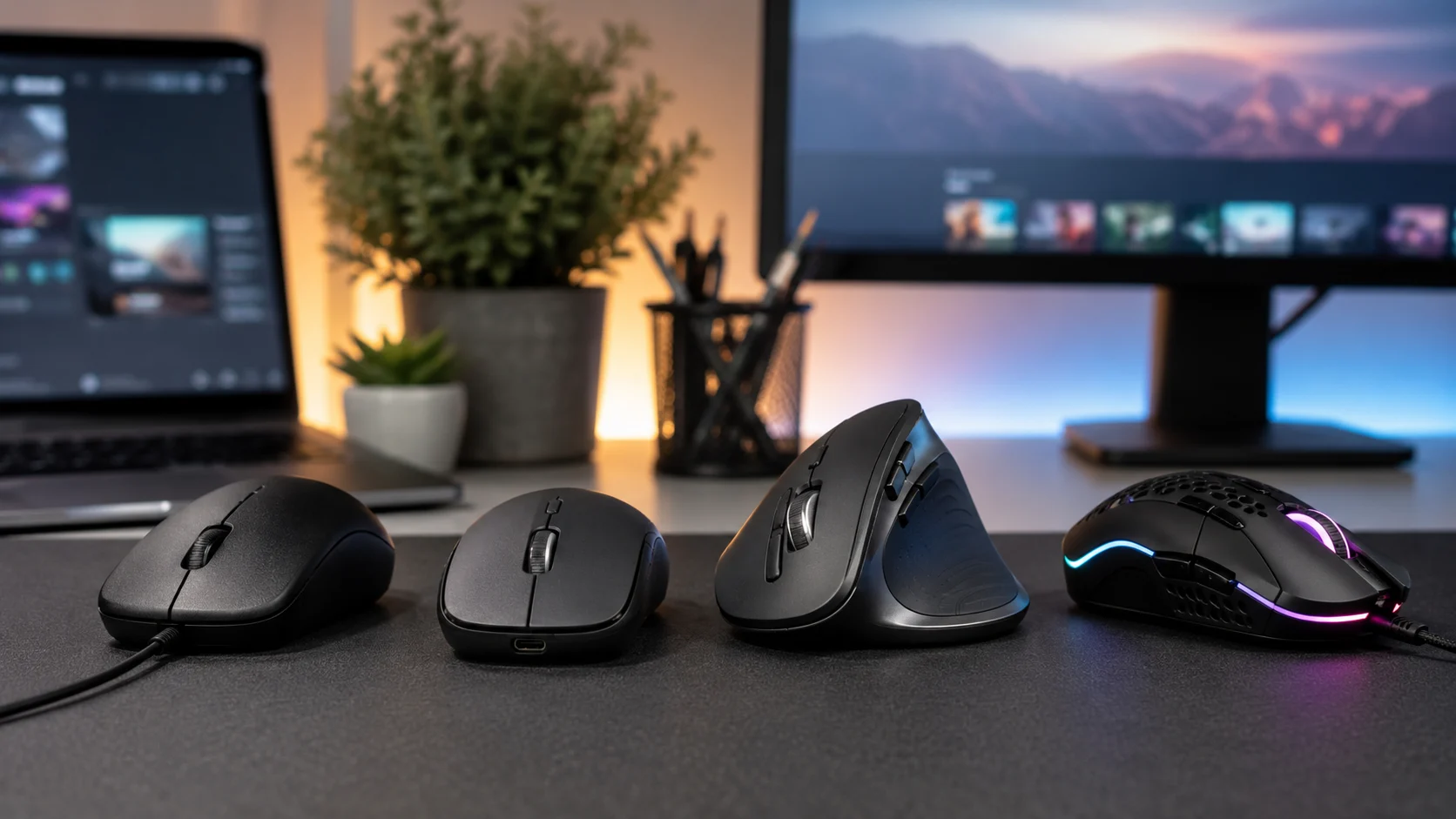
Ergonomic and specialized mice use alternative shapes or control mechanisms to address particular work styles, comfort preferences, or accessibility needs. A vertical mouse rotates the hand into a more upright position rather than using the flatter orientation associated with conventional mouse designs. A trackball keeps the main device stationary while the user rotates a ball with a thumb or fingers to control the pointer. Travel mice are smaller and designed for portability, while presentation mice may combine navigation features with slide-control functions. Some professional devices add numerous programmable buttons for applications such as computer-aided design, video editing, or complex productivity software. These variations demonstrate that the term computer mouse describes a broad category rather than one fixed physical design.
Common Uses and Functions of a Computer Mouse
The most basic computer mouse function is moving the pointer to a specific location on the screen. Pointer movement forms the foundation for nearly every other mouse-based interaction because users must first position the cursor over an icon, command, link, button, or object. Modern graphical interfaces provide visual feedback when the pointer moves across different interactive elements. Its appearance may change when hovering over text, hyperlinks, resizing borders, loading areas, or application-specific tools. Accurate pointer control makes it easier to navigate complex interfaces containing numerous controls in a relatively small area. Whether users are browsing websites or operating professional software, efficient cursor positioning remains the fundamental reason a computer mouse is useful.
Clicking is another essential mouse function and allows users to activate or select interface elements. A single left-click commonly selects an object, places a text cursor, activates a button, or chooses an option depending on the software context. Double-clicking is traditionally used to open files, folders, applications, or other objects within desktop environments. Right-clicking usually displays a contextual menu containing actions associated with the selected object or location. The middle mouse button may perform scrolling, tab management, navigation, camera controls, or application-specific commands. Because software developers can assign different responses to each mouse button, the same physical clicking action may perform substantially different functions depending on the program currently being used.
Dragging and dropping is a useful interaction that combines button input with pointer movement. A user presses and holds a mouse button while moving the device, allowing a selected object to follow the pointer until the button is released. This technique can move files between folders, rearrange desktop icons, reposition objects in design applications, adjust sliders, highlight text, or reorganize items within software interfaces. Dragging can also resize windows when users grab an edge or corner and move the pointer to a new location. Because the action closely resembles physically picking up and repositioning an object, it can feel intuitive for new computer users. Drag-and-drop interaction remains a major feature of modern graphical user interfaces.
Scrolling enables users to navigate content that extends beyond the visible area of the screen. Rotating the mouse wheel usually moves vertically through websites, documents, email conversations, social feeds, source code, and other lengthy content. Horizontal scrolling may also be available through wheel tilting, a secondary wheel, keyboard combinations, or application-specific settings. Clicking the wheel can sometimes activate automatic scrolling, allowing content to move according to pointer position without continuous wheel rotation. Smooth and precise scrolling can significantly improve productivity when users frequently work with large documents or long web pages. Advanced mice may provide configurable scrolling behavior, enabling users to choose between controlled step-by-step movement and rapid free-spinning navigation.
Programmable mouse buttons expand the device beyond conventional pointing and clicking functions. Users may assign keyboard shortcuts, application commands, media controls, navigation actions, macros, editing tools, or communication features to additional buttons. A video editor might map frequently used timeline commands to thumb buttons, while a spreadsheet user could configure shortcuts that simplify repetitive operations. Gamers can assign in-game actions to buttons that are quicker to access than distant keyboard keys. Some software allows each application to use different assignments automatically, meaning one button can serve several purposes depending on the active program. This customization transforms the computer mouse into a personalized productivity tool rather than merely a basic cursor controller.
Wired vs Wireless Mouse: What Is the Difference?
The clearest difference between wired and wireless computer mice is how they connect to the host device. A wired mouse maintains a physical connection through a cable, normally using a standard USB port or a compatible adapter. A wireless mouse transmits information through Bluetooth or a dedicated radio receiver instead of relying on a permanent cable. Both approaches can deliver excellent tracking and responsiveness when implemented properly. The best option depends largely on how and where the computer will be used rather than one technology being universally superior. Workspace organization, portability, battery management, available ports, responsiveness requirements, device compatibility, and personal preferences should all be considered before deciding between the two.
Wired mice offer simplicity because they receive both power and communication through the connecting cable. Users normally plug the device into a compatible port and begin working without worrying about battery levels, charging schedules, or wireless pairing. This reliability makes wired models attractive for permanent desktop stations and shared computing environments where straightforward operation matters. They can also be economical because inexpensive wired mice require fewer components associated with wireless communication and battery systems. However, cable length and routing can affect the experience, especially on crowded desks or during rapid movements. A poorly positioned cable may create resistance or snag against objects, although thoughtful cable management can minimize these inconveniences.
Wireless mice are especially attractive for users who value freedom of movement and clean workspace design. Without a cable extending across the desk, the device can be repositioned easily and packed conveniently with a laptop for travel. Bluetooth models can connect without occupying a USB port on computers that already include compatible Bluetooth hardware. Receiver-based wireless models commonly provide a simple plug-and-use experience and may offer highly responsive performance. Battery management remains the main practical difference because wireless communication requires an independent source of power. Depending on the model, users may replace disposable batteries occasionally, recharge an internal battery, or connect a temporary cable when power becomes low.
Latency was once a major concern when comparing wireless and wired mice, particularly for fast-paced gaming and other response-sensitive applications. Modern high-performance wireless implementations have greatly reduced that distinction, and quality wireless gaming mice can now provide extremely responsive communication. This means users should not automatically assume that every wired mouse is faster than every wireless model. Performance depends on the specific hardware, wireless protocol, receiver placement, software, and surrounding radio environment. Competitive users should evaluate measured responsiveness and product quality rather than relying entirely on connection-category assumptions. For standard office work, browsing, studying, and general computing, latency differences among competent modern devices are unlikely to be noticeable during normal usage.
Choosing between wired and wireless therefore comes down to priorities rather than a simple winner. A permanent office workstation may benefit from the reliability and maintenance-free power of a wired model, especially when desk movement is limited. A laptop user who travels frequently may find a compact Bluetooth mouse much more convenient. Someone working across several computers could prefer a wireless device capable of switching between paired systems using a dedicated button. Gamers can find excellent choices using either technology, provided the sensor, shape, connection system, and overall hardware meet their requirements. Considering the complete usage environment is more valuable than choosing a mouse simply because one connection method appears newer or more technologically advanced.
Computer Mouse Features That Matter Most
Shape and size are among the most important mouse characteristics because they directly influence how comfortably the device fits the user’s hand. People have different hand dimensions, finger lengths, grip habits, desk layouts, and working patterns, so one universal mouse shape cannot suit everyone equally. Some users prefer a compact body that can be controlled primarily with the fingertips, while others want a larger shape supporting more of the palm. Left-handed users should also consider whether a mouse has a symmetrical design or is specifically molded for right-handed use. Button placement needs to match natural finger and thumb positions without requiring excessive stretching. Comfort should therefore receive as much attention as specifications when selecting a device for frequent use.
Sensor performance affects how accurately and consistently physical movement is translated into pointer motion. A quality sensor should track smoothly without unexplained jumps, excessive smoothing, erratic acceleration, or inconsistent behavior across normal operating speeds. High sensitivity specifications can be useful, but extremely large DPI numbers should not automatically be interpreted as superior real-world performance. Most people operate comfortably at moderate sensitivity settings and rarely need the maximum values advertised on gaming products. Professional and gaming users may appreciate the ability to adjust sensitivity precisely for different tasks. For normal office applications, dependable tracking and predictable behavior matter more than achieving exceptionally high numerical specifications that may provide little practical advantage during ordinary work.
Button quantity should be considered according to how complicated the user’s applications and workflows are. A traditional mouse with left, right, and middle controls may be sufficient for web browsing, document editing, studying, and general office tasks. Additional thumb buttons can make browser navigation easier by providing quick access to forward and back commands. Creative professionals may benefit from customizable controls for undo, timeline navigation, tool switching, zooming, or other frequently repeated actions. Gaming mice sometimes provide numerous programmable buttons for skills, equipment, communication commands, or macros within supported games. More buttons are not always better, however, because crowded layouts can increase accidental presses and make a device more difficult to learn.
Weight influences how a mouse feels during both rapid and precise movement. Lightweight devices require less effort to accelerate or reposition and have become particularly popular among gamers who use low sensitivity and large sweeping movements. Heavier mice may feel more stable to users who prefer controlled motion, productivity tasks, or a substantial physical feel. Some models historically included removable weights that allowed users to adjust the balance, although fixed lightweight designs are increasingly common in performance-focused categories. Personal preference remains more important than assuming that one weight range is objectively superior. The ideal mouse should move comfortably without causing users to fight against excessive inertia or feel that the device is unstable during small corrections.
Battery life and charging design become especially important when choosing a wireless mouse. Some office-oriented devices can operate for extended periods using replaceable batteries because their electronics are optimized for low power consumption. Rechargeable performance mice may need more frequent charging because higher communication rates, lighting, powerful processors, or advanced sensors can consume additional energy. USB charging makes it easy to restore power, while certain models can continue operating as they charge through a cable. Users who travel frequently should also consider whether battery status is easy to check before leaving home or the office. A good wireless design minimizes the amount of attention required for power management so the device remains dependable during normal work.
How to Choose the Right Computer Mouse
The first step when choosing a computer mouse is identifying the primary activity it will support. A person who spends most of the day editing documents needs different features from someone playing competitive games or manipulating detailed engineering drawings. General productivity users should prioritize comfort, dependable tracking, useful scrolling, and straightforward connectivity. Gamers may care more about low weight, sensor behavior, button response, wireless performance, and configuration options. Designers and editors can benefit from additional controls, accurate movement, and application-specific customization. Travelers may value compact dimensions, Bluetooth support, receiver storage, and long battery life. Defining the intended use prevents unnecessary spending on specifications that provide little meaningful benefit.
The next consideration should be physical fit because an uncomfortable mouse can become frustrating during extended use. Measure expectations against hand size and consider whether you naturally control the mouse with your palm, fingertips, or a combination of finger and palm contact. A very small device may force a large hand into an awkward position, while an oversized shell can make buttons difficult to reach. Thumb buttons should sit where they can be pressed intentionally without accidental activation during normal movement. Users who are left-handed should verify whether the body shape and side-button layout are genuinely suitable for left-handed operation. Whenever possible, physical comfort should outweigh purely aesthetic preferences when selecting a device used every day.
Connection requirements should then be matched to the available computer ports and the intended workspace. A desktop computer with several unused USB ports may work perfectly well with a traditional wired or receiver-based mouse. Thin laptops with limited ports might benefit from Bluetooth connectivity because it avoids occupying a valuable USB connection. Users who regularly switch among a desktop, laptop, and tablet can look for models offering multi-device pairing. Wireless options should be evaluated for battery life and charging convenience in addition to their clean appearance. People working in shared technical environments may instead prefer wired devices because they avoid pairing issues. Choosing the correct connection method eliminates unnecessary adapters and reduces inconvenience later.
Software compatibility is another factor that becomes increasingly important with advanced mice. Basic pointing, clicking, and scrolling normally work through standard operating system support without requiring specialized software. However, programmable buttons, gestures, sensitivity profiles, lighting, advanced scrolling, and device-switching features may depend on manufacturer configuration applications. Users should therefore check whether those applications support their operating system before purchasing a feature-rich device. Corporate computers can also restrict software installation, potentially preventing access to advanced customization even when the mouse itself works normally. When customization is essential to a workflow, compatibility should be confirmed rather than assumed. A premium device offers limited value if its most important productivity functions cannot be configured on the intended computer.
Finally, price should be balanced against features that will actually improve the user’s daily experience. Entry-level mice can perform standard navigation effectively, making them perfectly suitable for occasional or basic computing. Midrange devices often improve materials, ergonomics, wireless connectivity, sensor performance, scrolling, and battery efficiency. Premium models may add sophisticated customization, multiple device connections, specialized ergonomic shapes, advanced sensors, or extensive programmable controls. Spending more is worthwhile when those benefits solve specific usability problems or support demanding professional tasks. However, higher price alone does not guarantee better comfort because physical fit remains highly personal. The best mouse is ultimately the one that combines reliable performance, appropriate features, comfortable design, and reasonable cost for the user’s individual needs.
Computer Mouse Care, Maintenance and Troubleshooting
Regular cleaning can keep a computer mouse operating smoothly and prevent small problems caused by dust, skin oils, or debris. Before cleaning, users should disconnect a wired device or turn off a wireless model whenever the design allows it. The outer shell can usually be wiped gently with a soft cloth that is only lightly dampened rather than saturated with liquid. Particular attention should be given to gaps around buttons and the scroll wheel where dust commonly accumulates. The underside should also be inspected because debris around the sensor opening can interfere with consistent movement detection. Cleaning should always be gentle, since forcing objects into openings or applying excessive liquid can damage switches, electronics, coatings, or internal components.
Cursor problems are frequently blamed on the mouse even though the underlying cause may involve the tracking surface. Reflective glass, highly polished materials, transparent surfaces, or unusual patterns can sometimes reduce the reliability of certain optical systems. Testing the mouse on a conventional mouse pad or matte desk surface is an easy way to isolate the problem. Dirt around the sensor opening can also produce irregular movement, sudden jumps, or temporary tracking interruptions. If surface changes and cleaning do not help, reconnecting the device or restarting the computer can rule out temporary communication issues. Users should also verify operating system pointer settings because excessively high sensitivity can sometimes make normal movement feel unstable or difficult to control.
Wireless connection problems may involve battery level, receiver location, pairing status, interference, or power-saving behavior. Recharging the mouse or installing a fresh battery is one of the simplest troubleshooting steps when connectivity becomes inconsistent. Receiver-based models may perform better when the USB receiver is positioned relatively close to the mouse rather than behind large objects or equipment. Bluetooth devices can sometimes be restored by removing the existing pairing and connecting the mouse again through system settings. Switching the device off and back on can also reset temporary communication problems. When several wireless peripherals operate in the same area, testing different ports or reducing nearby interference may help determine whether radio conditions are contributing to unreliable behavior.
Scroll-wheel problems can develop when dust accumulates around the wheel or when internal components begin wearing after extensive use. Cleaning visible debris may restore normal operation when scrolling feels inconsistent or occasionally moves in an unintended direction. Software settings should also be checked because operating systems allow users to control how many lines or pages move with each wheel step. If scrolling works normally in one program but behaves strangely in another, application-specific settings or software compatibility may be responsible. Persistent physical skipping across multiple computers can indicate internal wear rather than a configuration issue. At that point, repair may be possible for technically experienced users, although replacing an inexpensive mouse is often more practical.
Proper storage and handling can extend the useful life of both wired and wireless mice. Cables should not be bent sharply around the connector because repeated stress can eventually damage internal conductors. Wireless mice should be transported in a way that prevents buttons from being continuously pressed inside a tightly packed bag. Small USB receivers are particularly easy to lose, so models with built-in receiver storage offer a practical advantage during travel. Rechargeable devices should be charged according to normal manufacturer recommendations and protected from excessive heat or moisture. Mouse feet should also remain clean to prevent unnecessary friction and scratching. Simple care helps maintain predictable movement, comfortable clicking, and reliable connectivity over a longer period.
Why the Computer Mouse Still Matters Today
Touchscreens and trackpads have become increasingly capable, yet the computer mouse continues to offer advantages for precise desktop interaction. A touchscreen requires users to reach toward the display, which may be inconvenient during long sessions on traditional desktop systems. Laptop trackpads provide excellent portability but offer a relatively small surface for repeated cursor movements and detailed positioning. A mouse allows the hand to remain on the desk while providing a larger physical movement range. This combination is useful for spreadsheet work, graphic editing, engineering applications, document production, and other precision-oriented tasks. The availability of specialized shapes and sensitivity settings also allows the device to be adapted more closely to individual preferences than many integrated input systems.
Professional software continues to rely heavily on mouse interaction because complex interfaces contain numerous small controls and movable objects. Video editors use pointing devices to navigate timelines, adjust transitions, reposition clips, and manipulate graphical controls. Designers use them to select layers, resize objects, modify paths, and operate tool panels. Developers may use a mouse alongside keyboard shortcuts for navigation through integrated development environments, browser tools, and system interfaces. Analysts working with spreadsheets regularly select cells, resize columns, drag formulas, and operate menus through pointer interaction. These tasks could theoretically be accomplished using other input methods, but the mouse often provides an effective balance between speed, visual feedback, accuracy, and familiarity.
Gaming is another area where the computer mouse remains particularly important. First-person shooters, strategy games, multiplayer online games, simulation titles, and many other PC genres depend heavily on rapid pointer or camera control. Gaming mice allow players to adjust sensitivity, assign additional commands, create profiles, and choose hardware designed around particular grip preferences. High-quality sensors provide consistent tracking during fast movements, while responsive switches make repeated clicking feel immediate and predictable. Wireless developments have also allowed gamers to remove cable restrictions without necessarily sacrificing responsive performance. Although controllers are well suited to many genres, mouse-and-keyboard input remains strongly associated with PC gaming because of the precision and customization available.
Workplace flexibility has also created new reasons for external mice to remain relevant. Many people now move between offices, home workspaces, shared desks, and portable laptop setups throughout the week. A compact wireless mouse can make a laptop workstation feel more like a full desktop environment while occupying relatively little space in a bag. Multi-device models allow users to control different computers without keeping a separate mouse for each system. Bluetooth support can further reduce the number of adapters required when working with thin portable machines. Rather than being displaced by mobile computing, the mouse has adapted through improved portability, battery efficiency, wireless connectivity, and cross-device features that match contemporary working habits.
The continuing relevance of the mouse ultimately comes from its combination of simplicity and adaptability. A beginner can understand basic pointing and clicking quickly, while an advanced user can customize multiple buttons, sensitivity levels, profiles, scrolling modes, and software-specific actions. The device works across an enormous range of applications without requiring users to learn a completely different interaction method for each program. Manufacturers can also modify its shape, weight, sensor, connectivity, controls, and software while preserving familiar core behavior. This flexibility explains why the computer mouse has survived numerous shifts in computing technology. It remains one of the clearest examples of a simple input concept that continues to evolve without losing its original usefulness.
Conclusion
Understanding the computer mouse meaning is straightforward: it is a pointing input device used to control a cursor and interact with digital content on a computer. Its basic functions include pointer movement, clicking, double-clicking, right-clicking, scrolling, selecting, dragging, dropping, and activating software commands. Modern models may extend these capabilities through programmable buttons, high-precision sensors, device switching, adjustable sensitivity, and advanced scrolling systems. The mouse therefore performs far more than simple cursor movement, particularly when customized for professional or gaming applications. Whether connected through a cable, Bluetooth, or a wireless receiver, its goal remains the same. It converts physical hand movements and button presses into instructions that software can understand.
Different types of computer mice are designed for different environments and users. Wired models provide simplicity and continuous power, while wireless models offer portability and cleaner desk arrangements. Optical and laser technologies describe different approaches to movement sensing, although implementation quality matters more than terminology alone. Gaming mice focus on responsive tracking, customization, buttons, weight, and performance-oriented features. Ergonomic mice change the physical shape to address different hand positions and comfort preferences, while trackballs provide an alternative method of controlling pointer movement. Recognizing these differences makes it easier to avoid choosing a device based entirely on marketing language. The most suitable mouse should match the actual tasks performed by the person using it.
Comfort is especially important when a mouse will be used for several hours each day. Sensor specifications and large numerical performance claims may attract attention, but an uncomfortable physical shape can negatively affect the entire experience. Users should consider hand size, preferred grip, button reach, scrolling behavior, weight, connection type, and workspace arrangement before purchasing. Software compatibility should also be checked when advanced customization is an important requirement. Wireless users should additionally evaluate battery life and charging convenience instead of focusing only on the absence of a cable. Considering these practical factors produces a better result than automatically selecting whichever model includes the longest feature list.
Proper maintenance can keep a computer mouse performing reliably for a long period. Keeping the sensor area, scroll wheel, exterior shell, and mouse feet free from excessive debris can prevent many common tracking and movement problems. Wireless models should maintain sufficient battery power, while wired models should be protected from unnecessary cable stress. If cursor behavior becomes inconsistent, users can test another surface, reconnect the mouse, review pointer settings, check wireless pairing, and try the device with another computer. These basic troubleshooting steps can distinguish software or surface problems from actual hardware failure. Because most mouse functions are straightforward, many everyday problems can be diagnosed without complicated technical procedures.
Despite major changes in computing, the mouse continues to provide a combination of accuracy, convenience, familiarity, and customization that remains difficult to replace completely. Touchscreens are excellent for direct interaction, trackpads make laptops portable, and keyboards provide powerful shortcuts, but each input method serves different strengths. The mouse complements these technologies rather than simply competing with them. It remains useful for everyone from students and office professionals to engineers, designers, developers, and gamers. New wireless standards, sensor improvements, ergonomic designs, and software features continue to modernize the device. As long as graphical computer interfaces require precise pointing and selection, the computer mouse is likely to remain an important part of everyday computing.
Frequently Asked Questions About Computer Mouse
What is a computer mouse in simple words?
A computer mouse is a handheld input device used to move a pointer on a computer screen and select or control digital objects. It lets users click, scroll, drag, open files, activate commands, and navigate software more easily.
What is the main function of a computer mouse?
The main function of a mouse is to control the onscreen pointer according to the user’s physical hand movements. Its buttons and scroll wheel also allow users to select objects, open menus, move items, navigate pages, and perform other software commands.
Is a mouse an input or output device?
A computer mouse is an input device because it sends information and commands from the user to the computer. It does not primarily display or produce information for the user, which is the role generally associated with output devices.
What are the most common types of computer mouse?
Common types include wired mice, wireless mice, Bluetooth mice, optical mice, laser mice, gaming mice, ergonomic mice, vertical mice, trackballs, and compact travel mice. Some categories overlap because one device can be wireless, optical, ergonomic, and productivity-focused at the same time.
What are the basic mouse actions?
Basic mouse actions include pointing, single-clicking, double-clicking, right-clicking, scrolling, dragging, dropping, and selecting. Advanced mice may also support programmable button commands, horizontal scrolling, gestures, sensitivity switching, and application-specific shortcuts.